
Insert an Image Gallery
Short url: https://ewp.guide/go/ce/insert-an-image-gallery
WordPress has its own simple built-in Image Gallery that allows you to add multiple images to a page in one easy step.
To insert an image gallery into your Page/Post, click the Add Media button ( ). A pop-up window will display that looks the same as the one that displays when you add an image to your Page/Post. You can upload new images to use in your gallery or you can simply choose from your previously uploaded images.
By default, you’ll be shown a list of your previously uploaded images. If you’d like to upload a new image, click on the Upload Files link at the top of the pop-up window or simply drag ’n drop your new images into the pop-up window.
Click the Create gallery link in the left-hand navigation then select the images that you’d like to insert into your gallery.
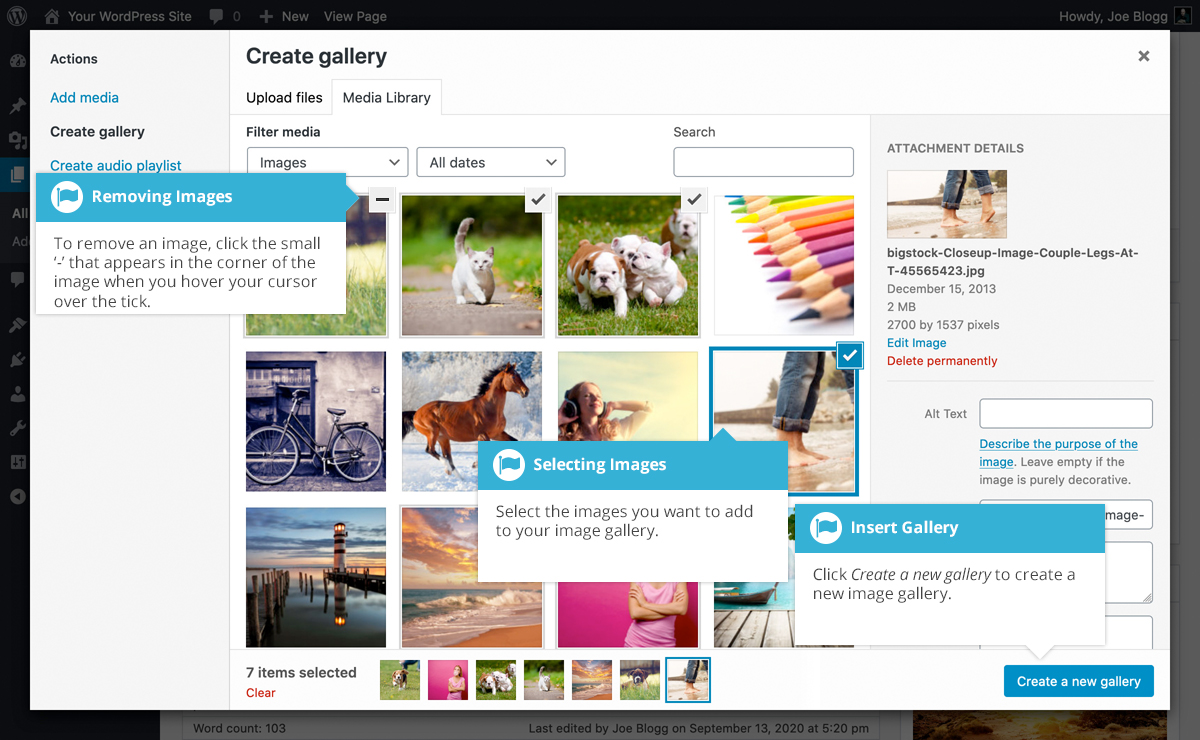
After selecting your images, click the Create a new gallery button at the bottom of the pop-up window. The window will change so that only the selected images are shown.
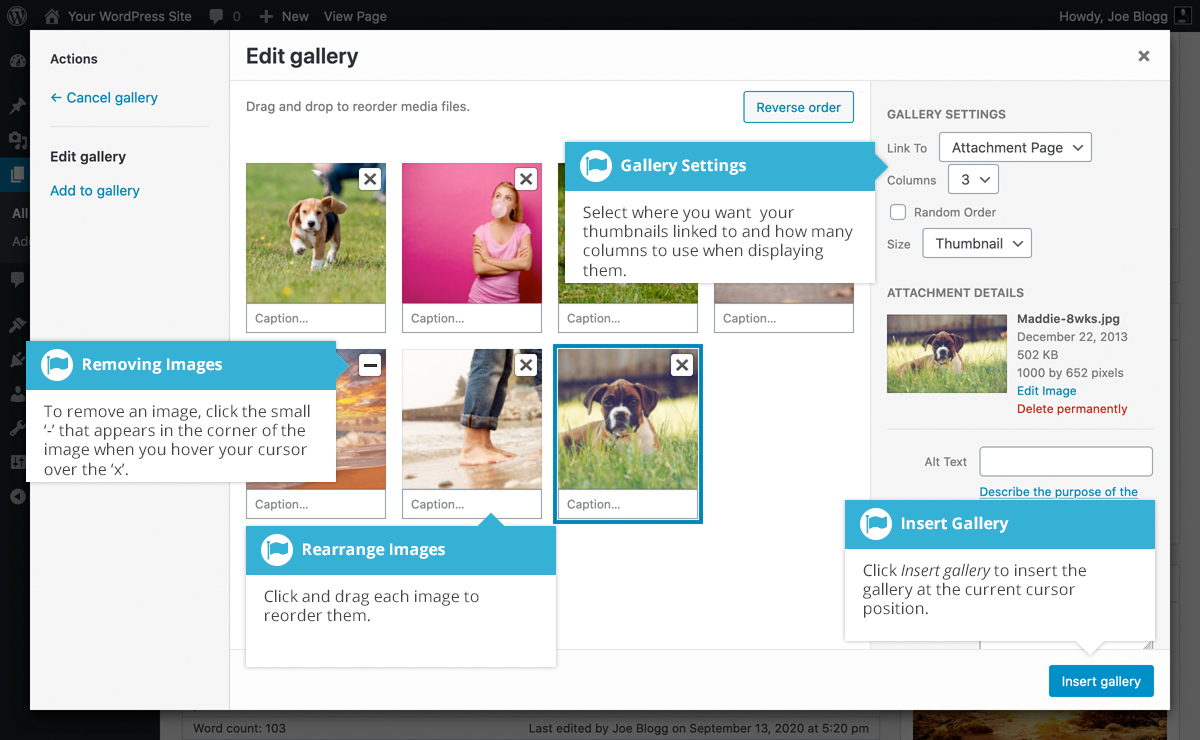
All the images that appear will be used within your Image Gallery. To reorder the images simply click on an image and drag it to its new position. If you’d like to add captions to your images, click the ‘Caption…’. text below each image and then type in your caption. Alternatively, click each image and then update the Title, Caption, Alt Text and Description on the right-hand side of the pop-up window. You can also include basic HTML, such as links, in your captions.
If you decide you no longer want a certain image to appear in your gallery, click the small ‘-’ that appears in the top right corner of the image when you hover your cursor over the ‘x’.
Since the built-in gallery is quite simple, there aren’t that many options to choose from when setting it up.
- Link to – This sets what happens when the thumbnail image is clicked. Selecting Media File will open the full size image directly in your browser window. Selecting Attachment Page will open the image within one of your WordPress formatted pages
- Columns – Specifies the number of columns to use when displaying your thumbnail images. Ultimately, this will be dependent on your Theme and how wide your page is. If you find the gallery isn’t displaying properly after changing this number you may need to change it to another number
- Random Order – Click this checkbox to display your images in a random order
- Size – Selects the size of the image to use in your gallery